



In this post I want to offer something useful for any SEO specialist, wherever they are in their SEO optimization journey.
Bookmarklets are like mini Chrome extensions or mini SEO tools that can perform various simple or more complex functions. By running JavaScript directly in the browser you can carry out fairly complex operations and save a lot of time.
Some of the SEO tools were sourced from other websites, while others were developed by me over time – such as the tool with regex functions for Google Search Console and GA4.
There are 25 SEO bookmarklets in total, ready to use directly in your browser – all you need to do is drag the link marked with the symbol into your bookmarks bar, and within seconds you can test and save them as bookmarks.
Note: If you have trouble with any of these bookmarklets, try the versions displayed in Google Docs – all you need to do is paste that code into the URL field of any existing bookmark in your bookmarks bar.
Note 2: Some bookmarklets will require you to allow pop-up windows – either a notification will appear when you activate the bookmarklet, or you’ll need to go to your browser settings:
- Edge: Settings > Cookies & Site permissions > Pop-ups & Redirects > Uncheck ‘Blocked (Recommended)’.
- Chrome: Settings > Privacy & Security > Site Settings > Pop-ups and redirects > Check the option ‘Sites can send pop-ups and use redirects’.
1. Check on-page SEO elements
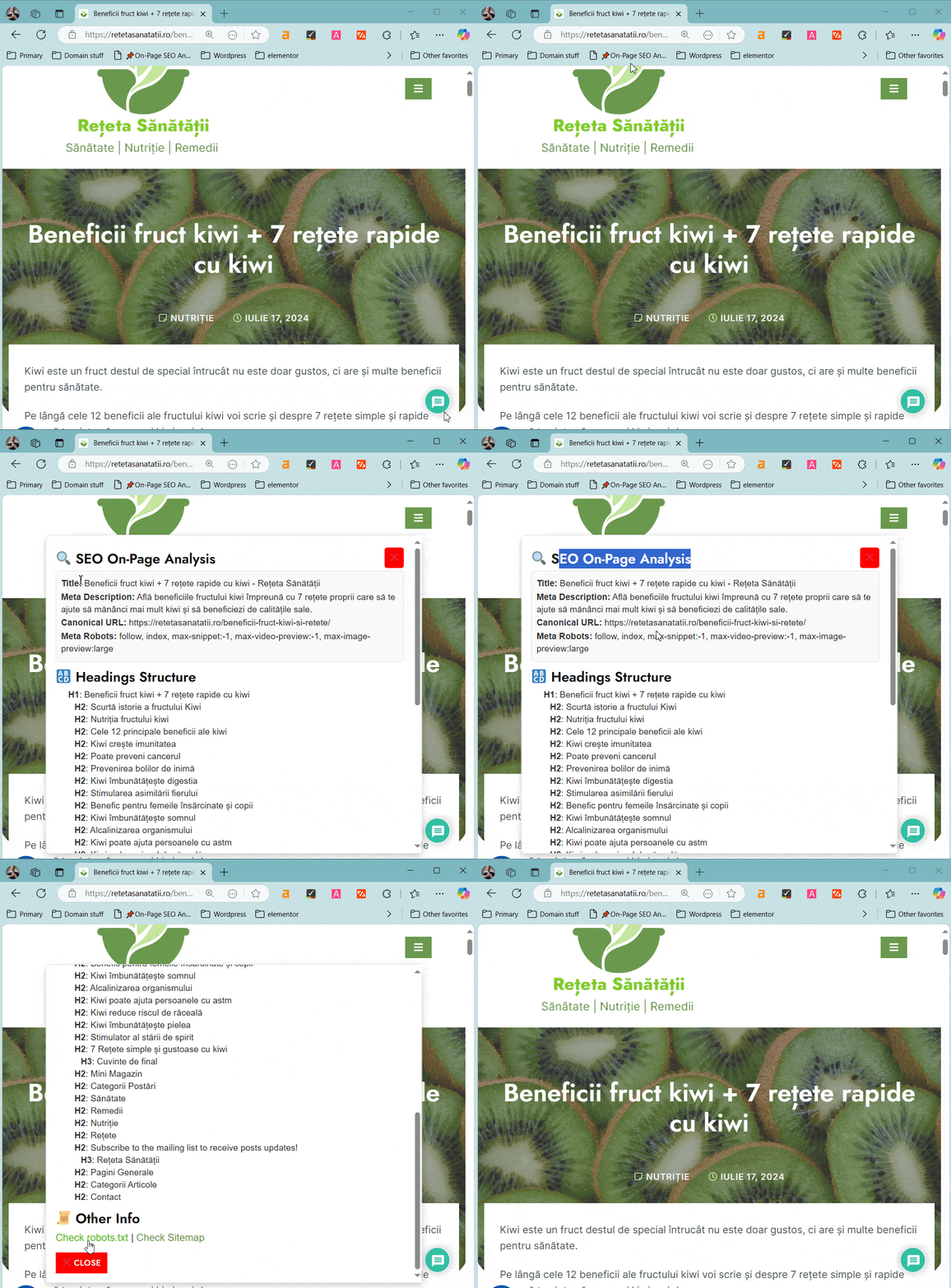
See on-page SEO details with a single click, with headings arranged in a hierarchy so you can visualize the page structure.
There are many Chrome extensions for viewing on-page SEO details such as page title, meta description, or canonical tag. However, these Chrome extensions can sometimes run slowly when you have multiple apps open on your PC – using a bookmarklet makes the on-page SEO details appear instantly.
On top of that, when I use Chrome extensions those details disappear once I switch pages – but with a bookmarklet the details window stays active if I need to revisit it.
2. Check for internal 4xx or 3xx errors on the page
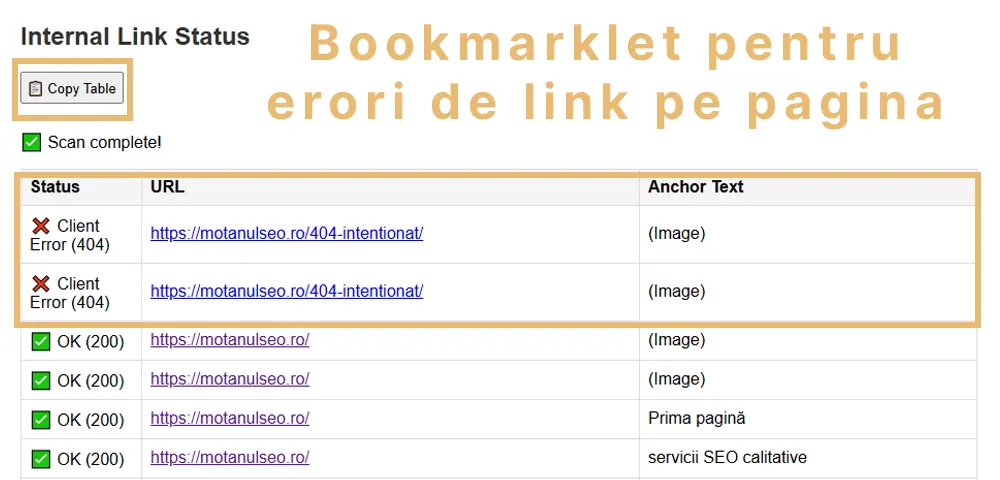
With this bookmarklet you can see directly in your browser any internal 404 or 301 pages. It also includes automatic sorting with errors arranged at the top of the table for a quick overview without having to scroll down the page.
Additionally, you can copy the table by clicking the ‘Copy Table’ button and then transfer it to Google Sheets, for example.
Note: A delay between scans had to be implemented to avoid 429 Too Many Requests errors.
3. View image details + copy details function
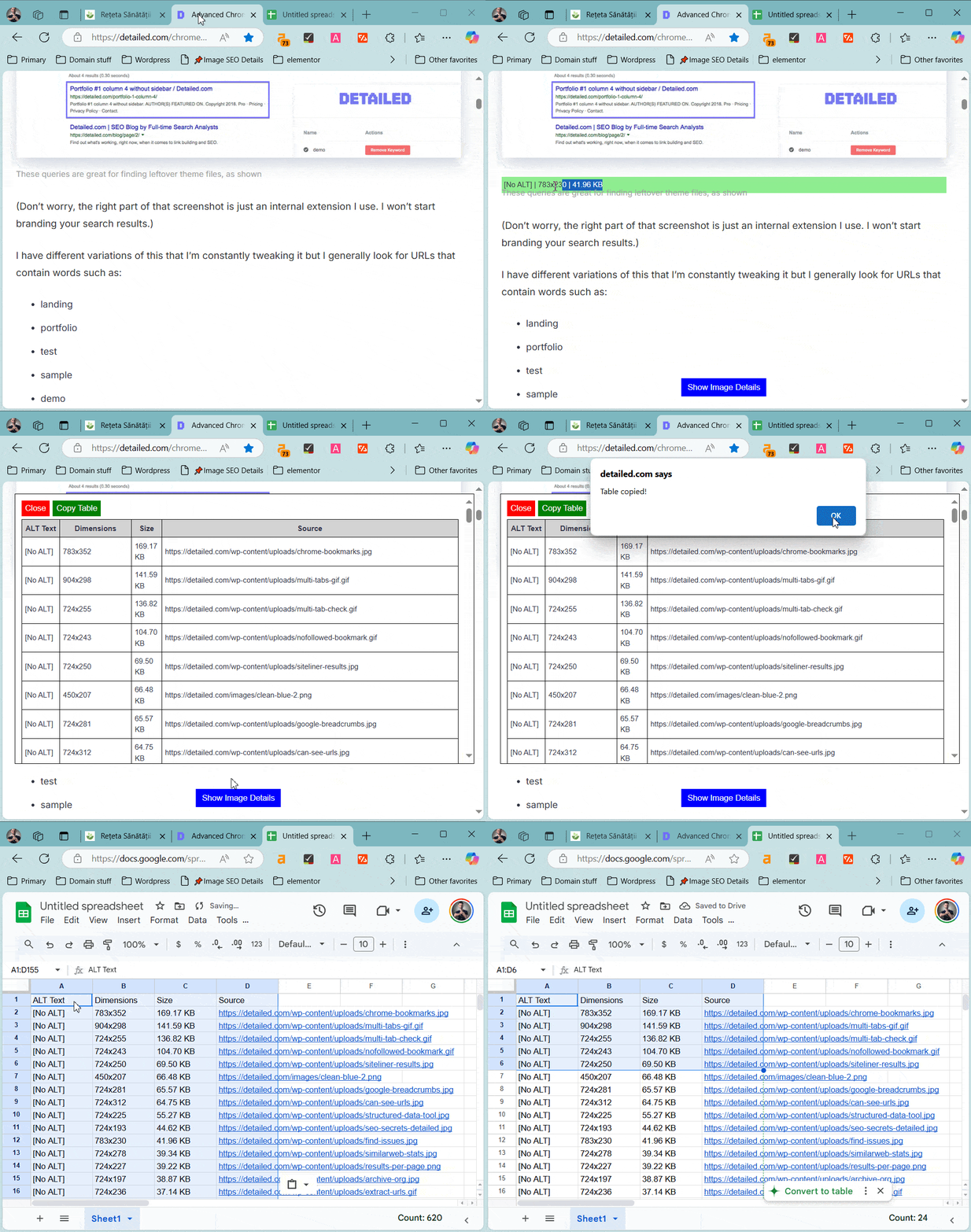
Another SEO bookmarklet for direct on-page analysis. This time we extract the key details of images – alt text, image dimensions, and file size. I sourced this bookmarklet from here, but improved it with a table generation function, image sorting by file size, and a copy table button.
Click the ‘Show Image Details’ button to view a table with image details sorted by file size, plus a copy table button.
4. View site structure with a single click
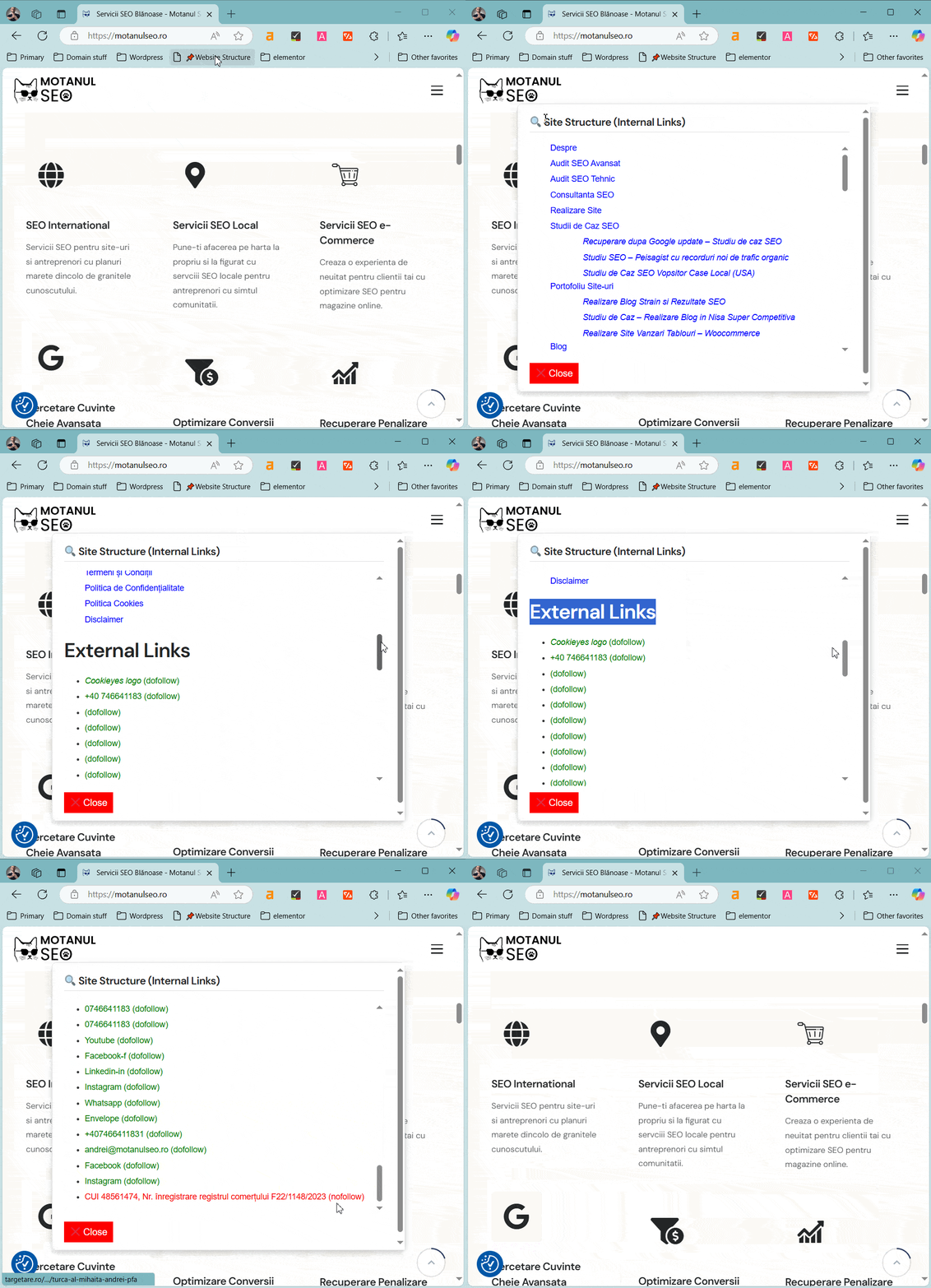
This SEO bookmarklet is useful for quickly viewing the link structure on any page – though it is most useful on the homepage.
If there are internal nofollow pages these are highlighted in red, and italic links mean the link was extracted from an image. There is also a section showing external links on the page with automatic identification of dofollow and nofollow links.
Note: Only able to scan links that are visible on the scanned page (frontend or backend) – it cannot visit pages deeper in the site structure.
5. Find hidden or incorrectly indexed pages
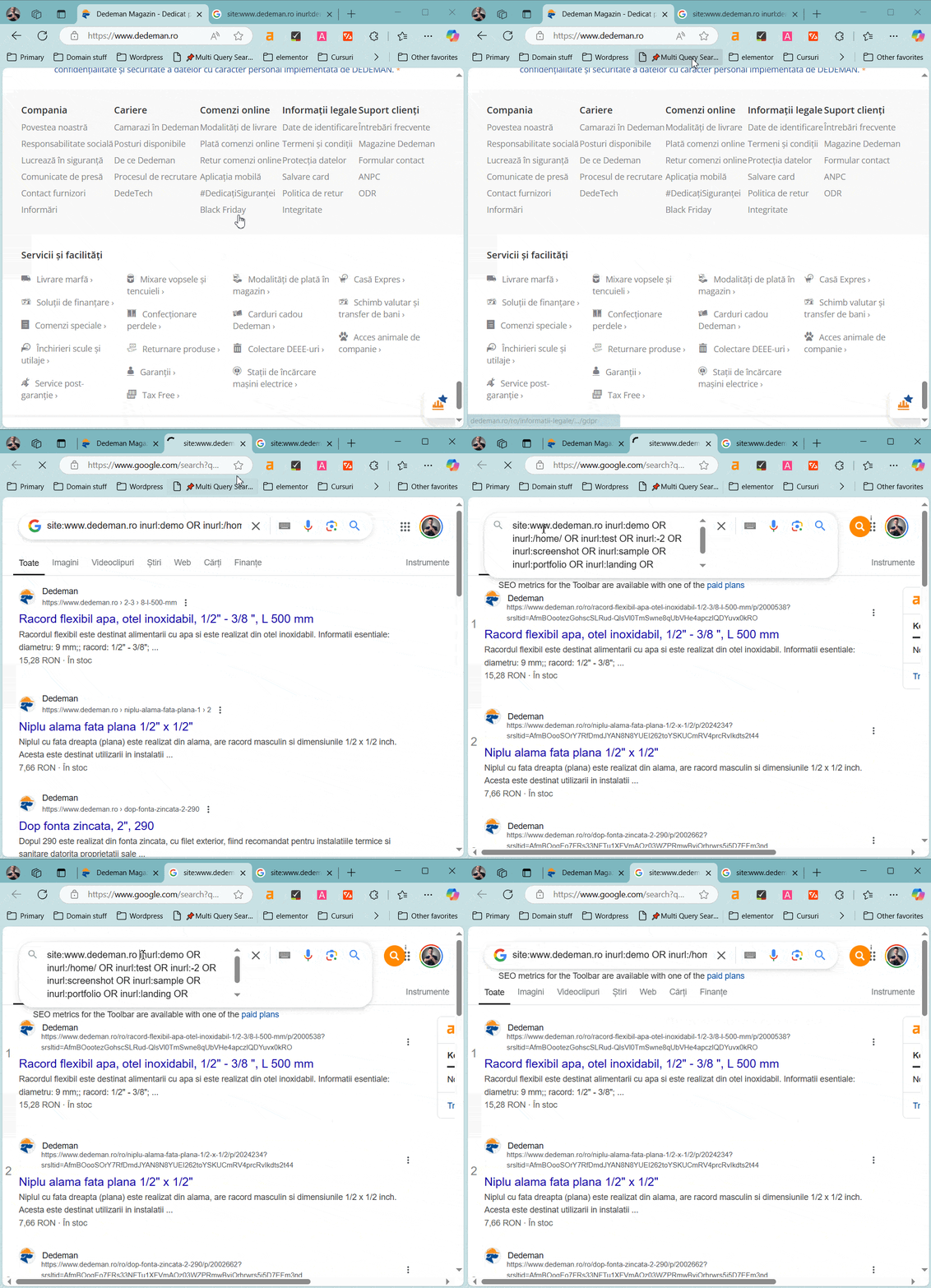
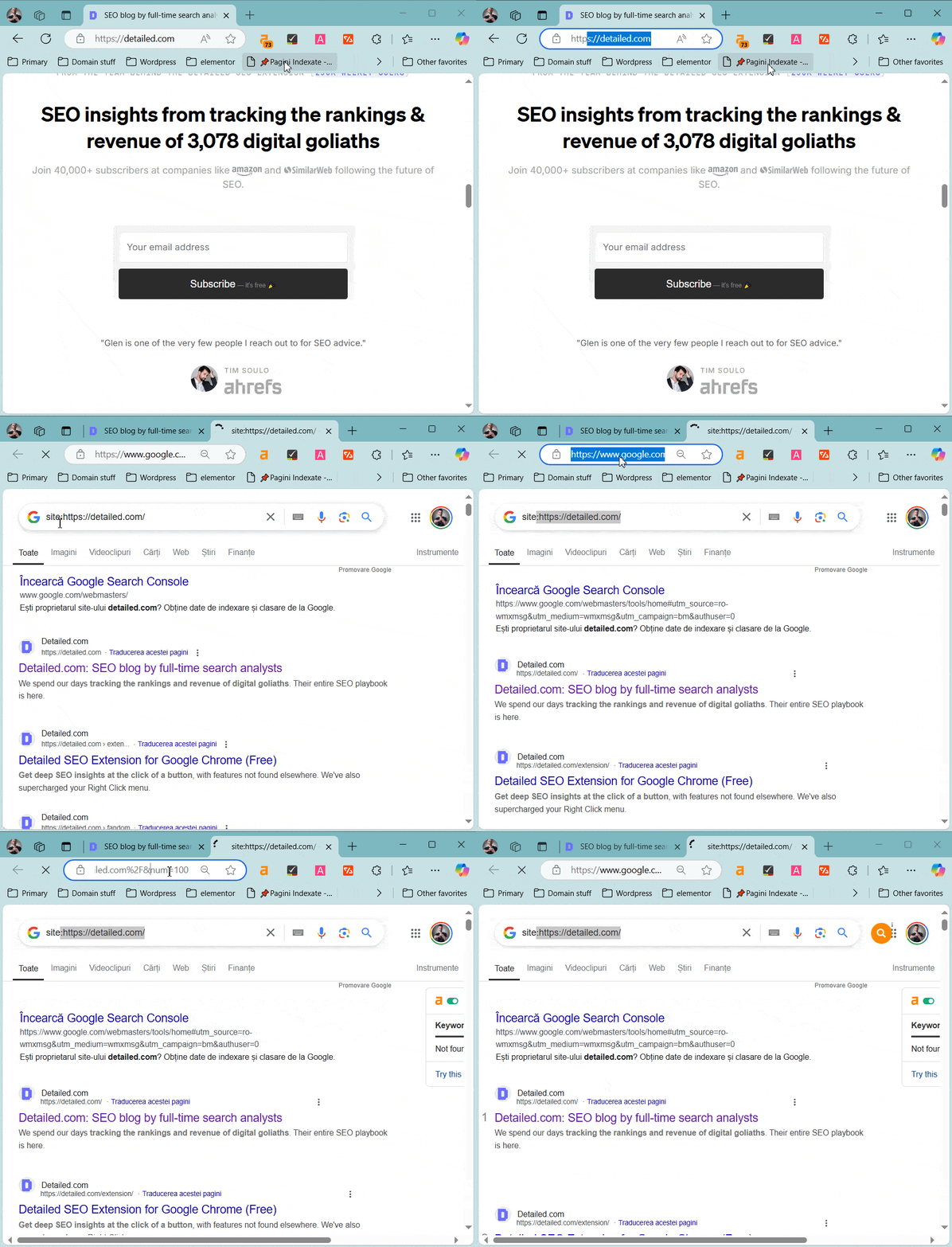
Moving on to indexing issues – with this bookmarklet you can find pages whose URLs contain words typically associated with pages not meant for indexing, such as test, sample, demo, etc.
It can be activated directly from the page you’re browsing, and the bookmark will search Google for just the site’s root domain rather than the exact page you’re on.
Originally found here on detalied.com, but to make this bookmarklet even more useful I built a tool where you can generate your own bookmarklet with your own automatic Google search terms.
- SEO Tool: Generate your own customized bookmarklet with this tool: Bookmark Generator for Multi Query Search.
6. Find indexed non-secure http:// pages
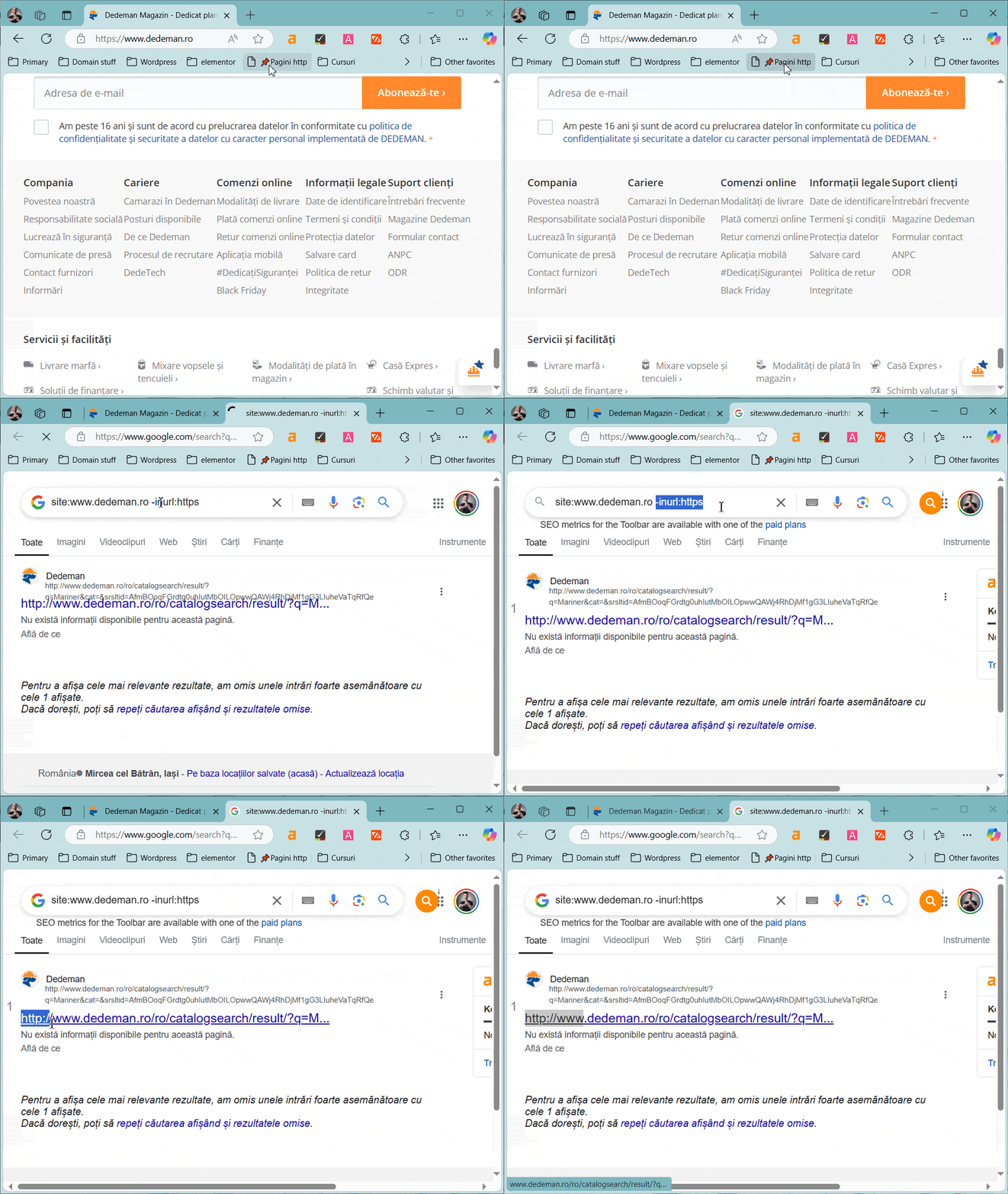
Other pages you don’t want indexed are non-secure HTTP pages. This bookmarklet quickly searches Google to discover any indexed http:// pages.
Even though we have a redirect from http:// to https://, these pages can still be indexed because there are internal links pointing to those http:// URLs, or because there are backlinks pointing to that version of the URL.
7. Check for duplicate content on the site
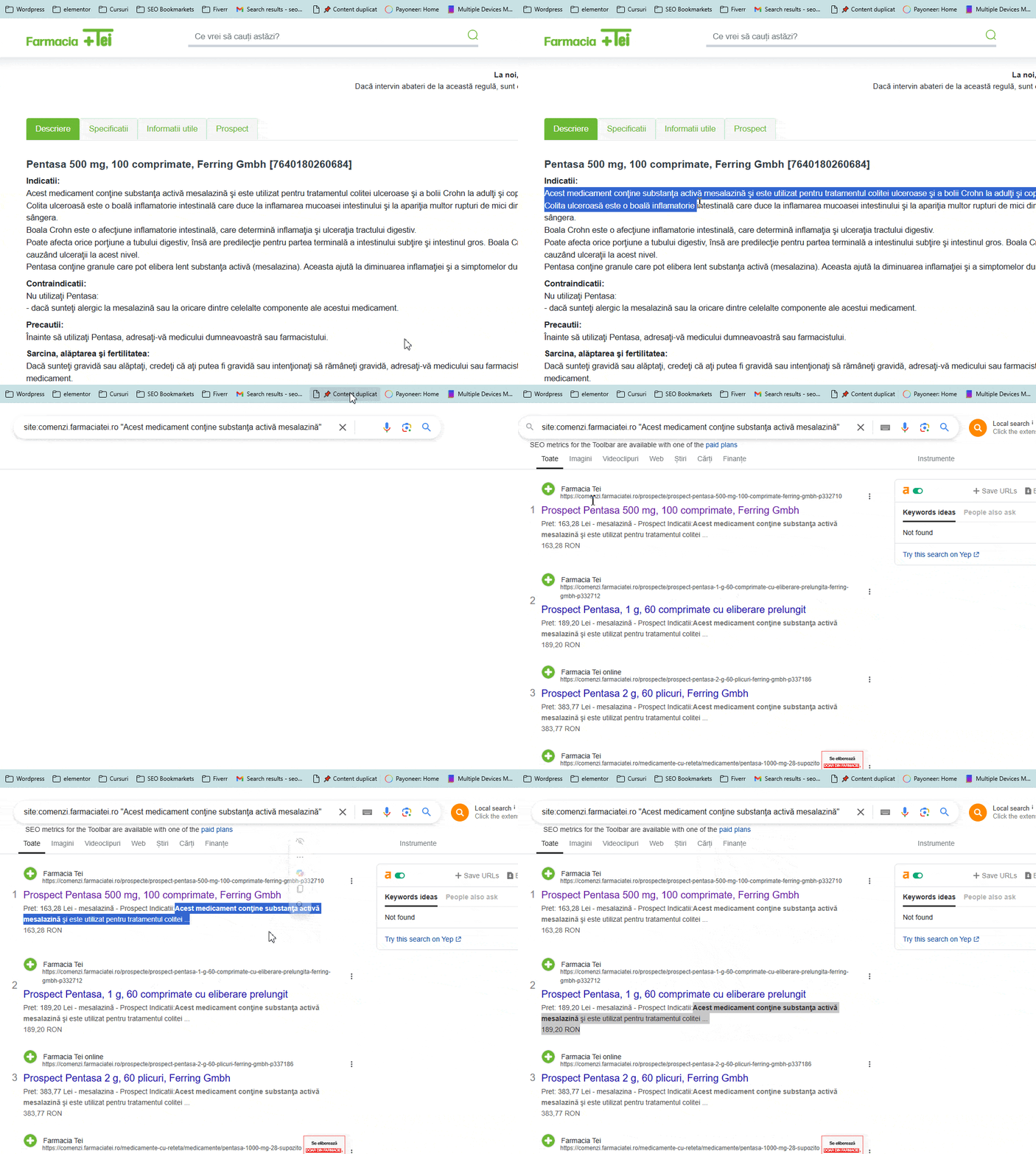
With this SEO bookmarklet you can quickly find duplicate content on your site – highlight a piece of text on the page and click the bookmark. It will automatically search Google for that text in quotes along with the site: operator.
You can then remove the site:yourdomain.com part to search whether the exact same text exists on other sites, thus analyzing duplicate content across multiple sites and not just the one being analyzed.
8. Find duplicate pages using intitle:
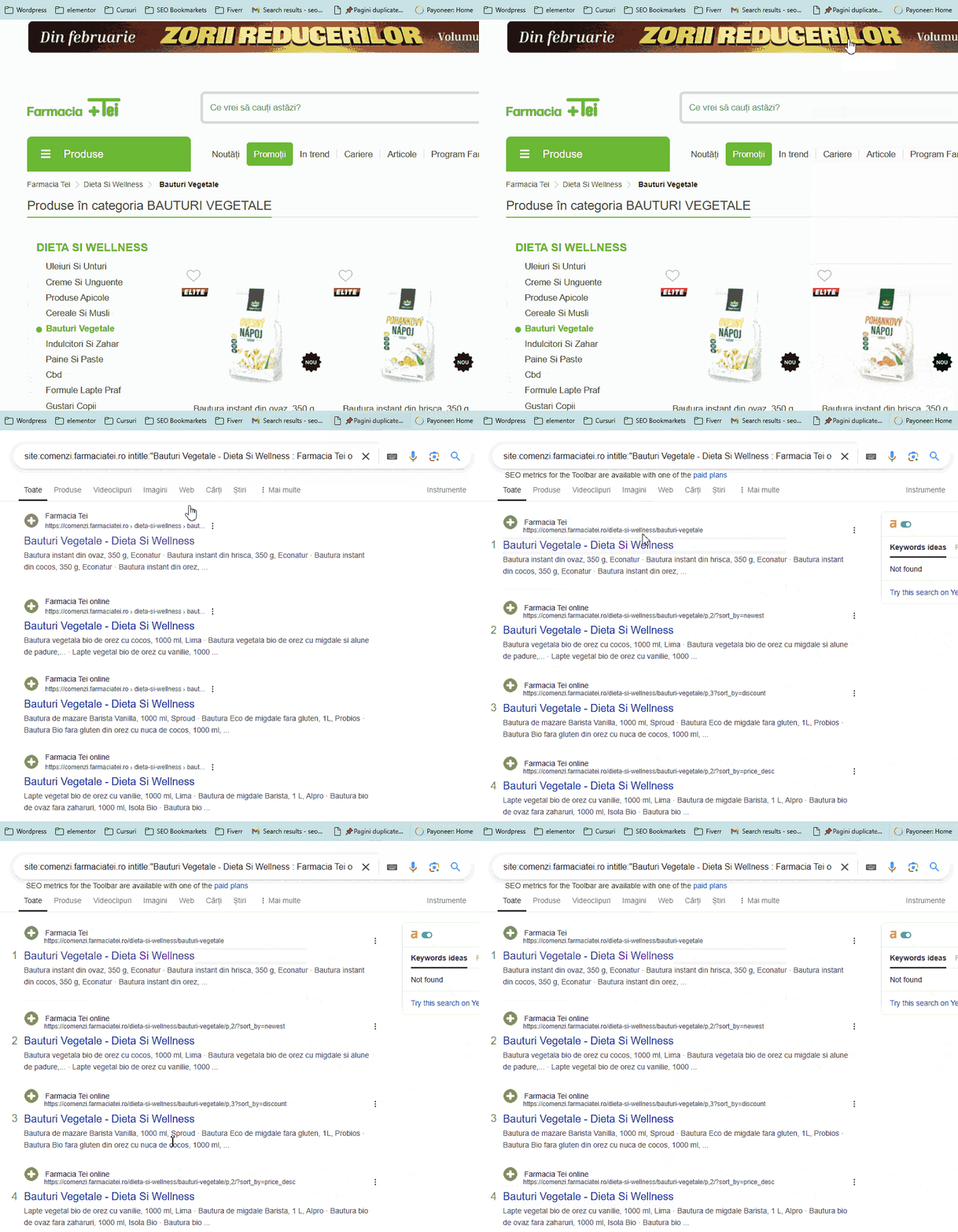
Similar to the one above, but here we can find even more interesting pages. This bookmarklet finds indexed duplicate pages with the same title by automatically performing a Google search using the intitle: search operator.
For example, during an analysis of libertatea.ro I found different pages with the exact same title, even though they didn’t have the same content.
I recommend removing the brand name from the automatically triggered search to increase the chances of finding those incorrectly indexed duplicate pages.
9. Custom date search
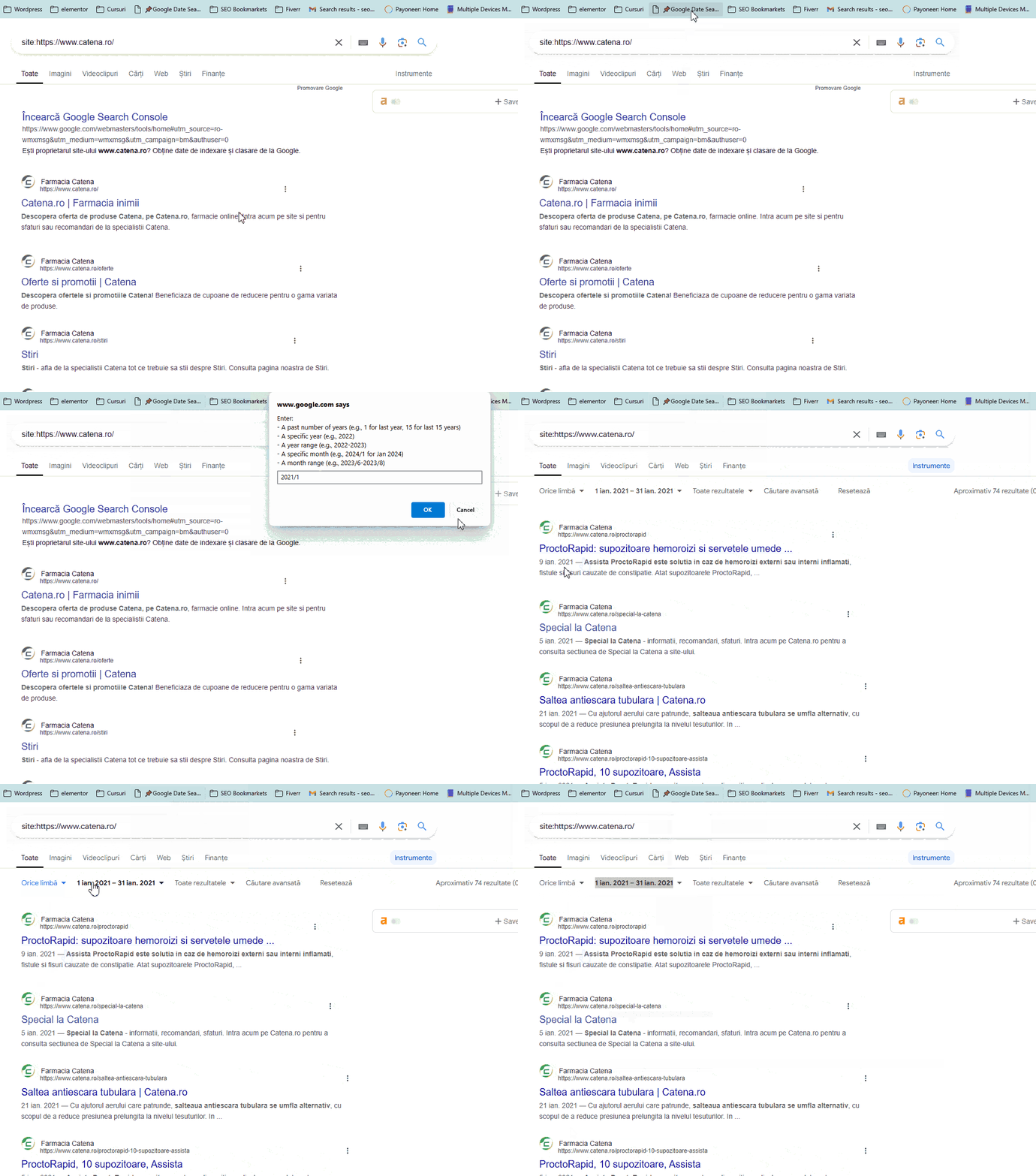
This bookmarklet lets you customize your Google search results by year and month of your choice – it works much faster than manually selecting a time period from the calendar in Google’s settings.
For example, you can view all pages indexed in 2022, or find pages with a date associated with them from 10-15 years ago, to quickly identify very old pages on the site.
Click the bookmark after performing a Google search such as site:domain.com; then enter for example 2022 to see all pages indexed throughout the entire year of 2022, or 2025/1 to see all pages indexed in January 2025.
You can also choose ranges such as 2023-2024 (2 full years), or 2024/6-2024/12 (for pages from the second half of 2024, July-December).
10. Check pages indexed in Google
A simple bookmarklet that quickly performs a site: search operator query in Google from any active page.
If you’re on a product category page, for example, you can use this shortcut to get an idea of how many products are included in a particular category on the site.
It can also be used from the homepage if it’s a small site with a few dozen pages, to quickly see all pages indexed in Google.
11. Enable 100 visible results in Google
Edit November 13, 2025: Unfortunately Google has deprecated this feature from their search engine. The maximum number of results that can now be displayed on a single page is 10.This function also exists in the bookmarklet above, but here we have a separate one just for enabling 100 results in Google, removing the default limit of 10 results.
The previous one is activated from the page of the site you want to analyze – but this one enables the 100-result view after you’re already on a Google page for any search performed.
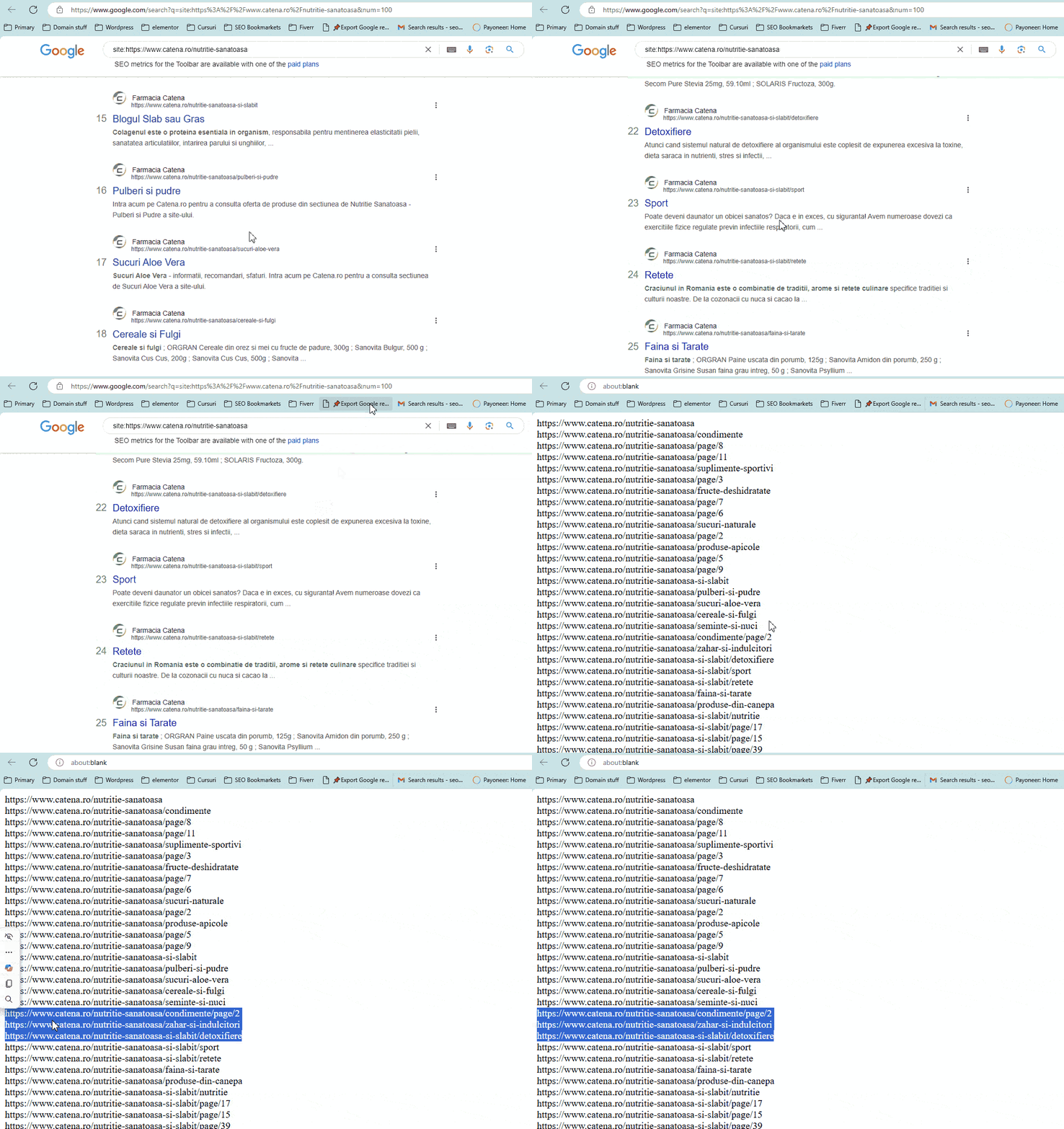
12. Export all results from the Google SERP
This bookmarklet exports all results from the Google page in a single click.
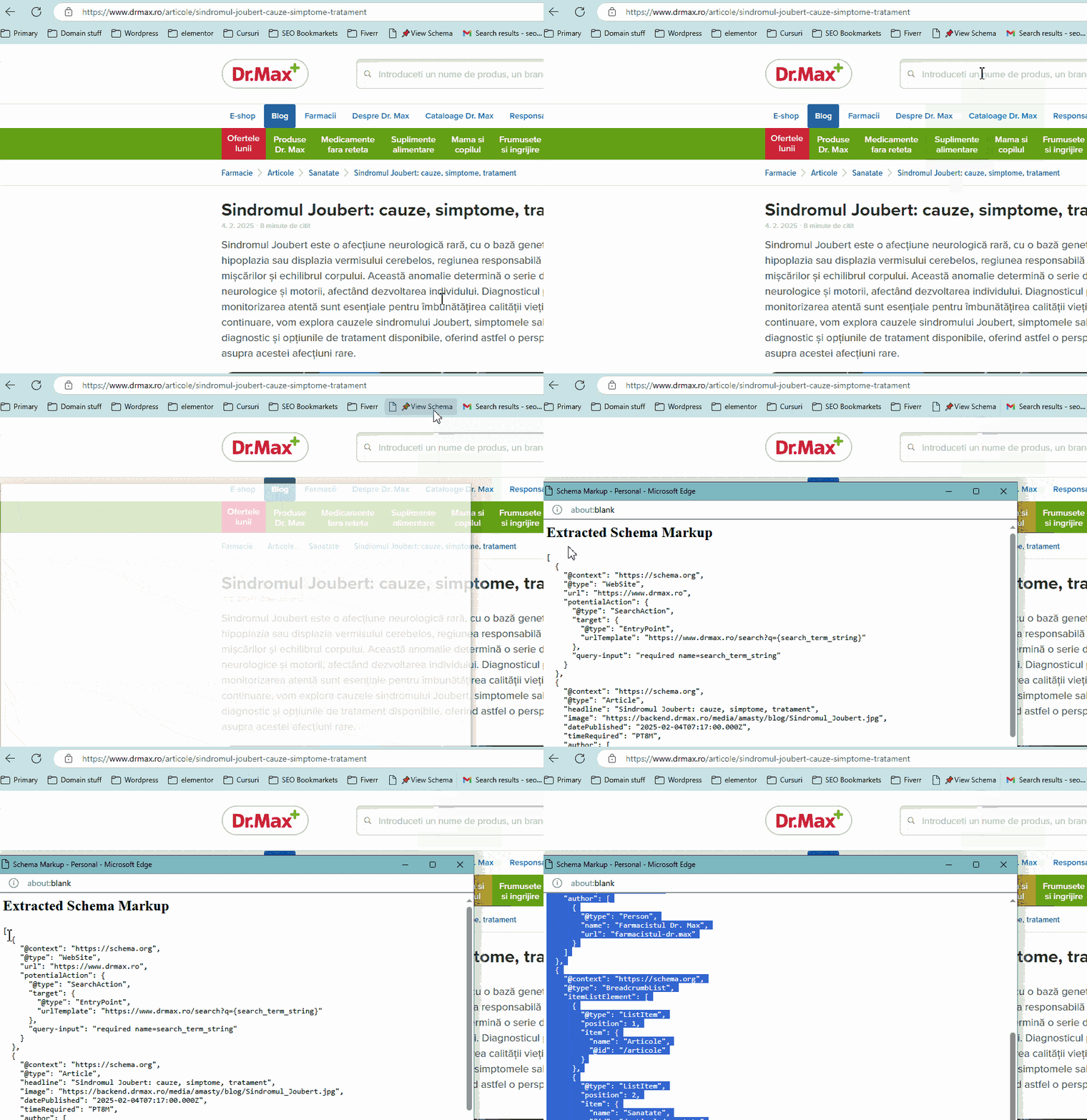
13. View schema markup on any page
A simple bookmarklet that automatically exports the schema code from any page with just a single click.
This is the exact same bookmarklet sourced from here with no modifications needed, as it’s perfect as is – simple and practical.
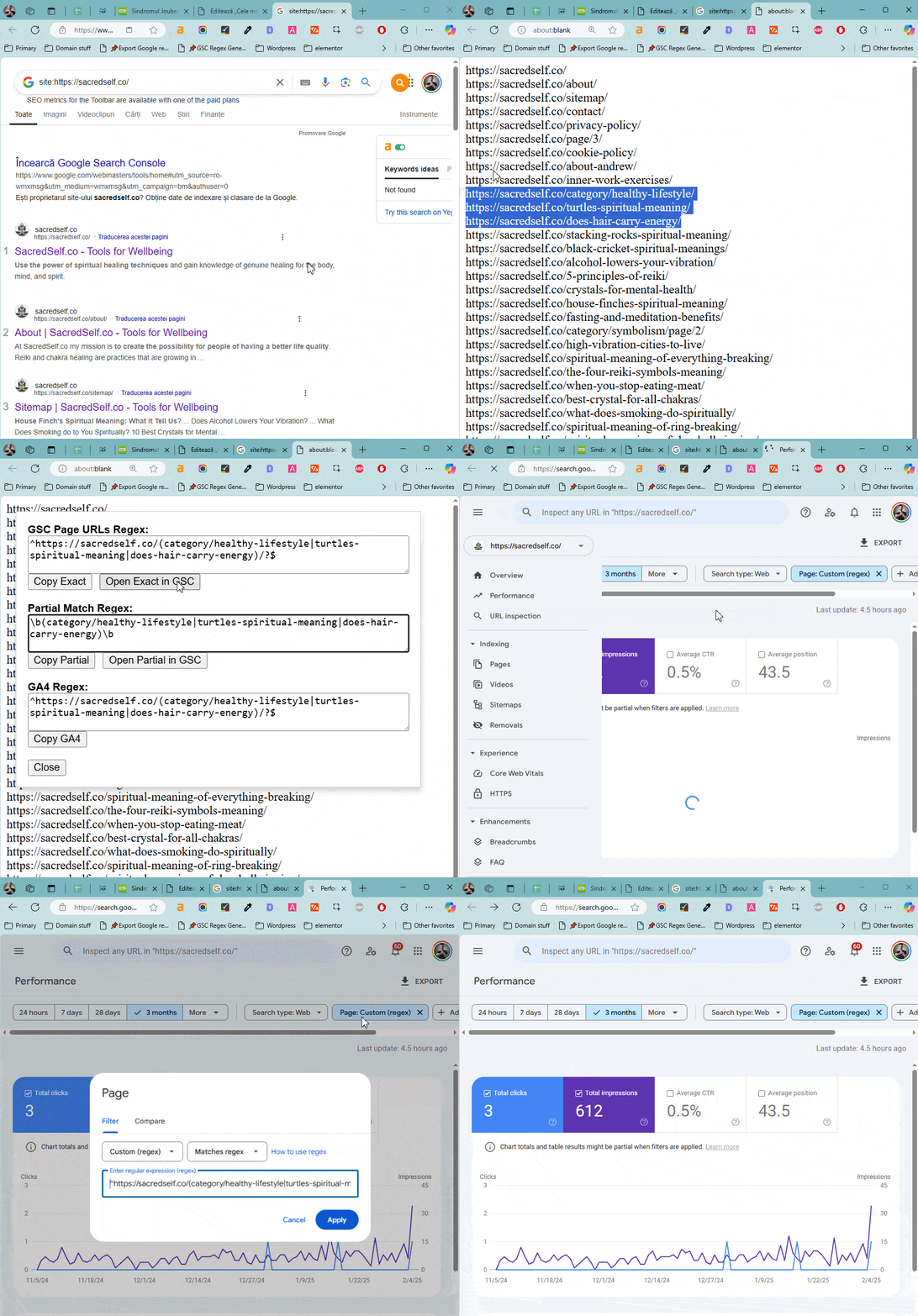
14. Advanced regex generator for GSC and GA4
The idea for this bookmarklet came to me while writing this post. It’s more complex, with 2 practical functions for any SEO expert.
How does it work?
Copy a list of keywords or a list of URLs to your clipboard, and this bookmark will detect whether they are keywords or URLs and generate regex expressions for Search Console and for GA4 using the copied values. I also added the function to open the regex directly in Google Search Console.
Update: After recent Google Sheets updates, this bookmarklet no longer works the same way – here in the video I show how it automatically detects values copied from Google Sheets, but it no longer works directly from Sheets. I modified it so that you now manually copy and paste – copy the values from Sheets, click the Bookmarklet, paste them into the window that appears, then click ‘OK’.
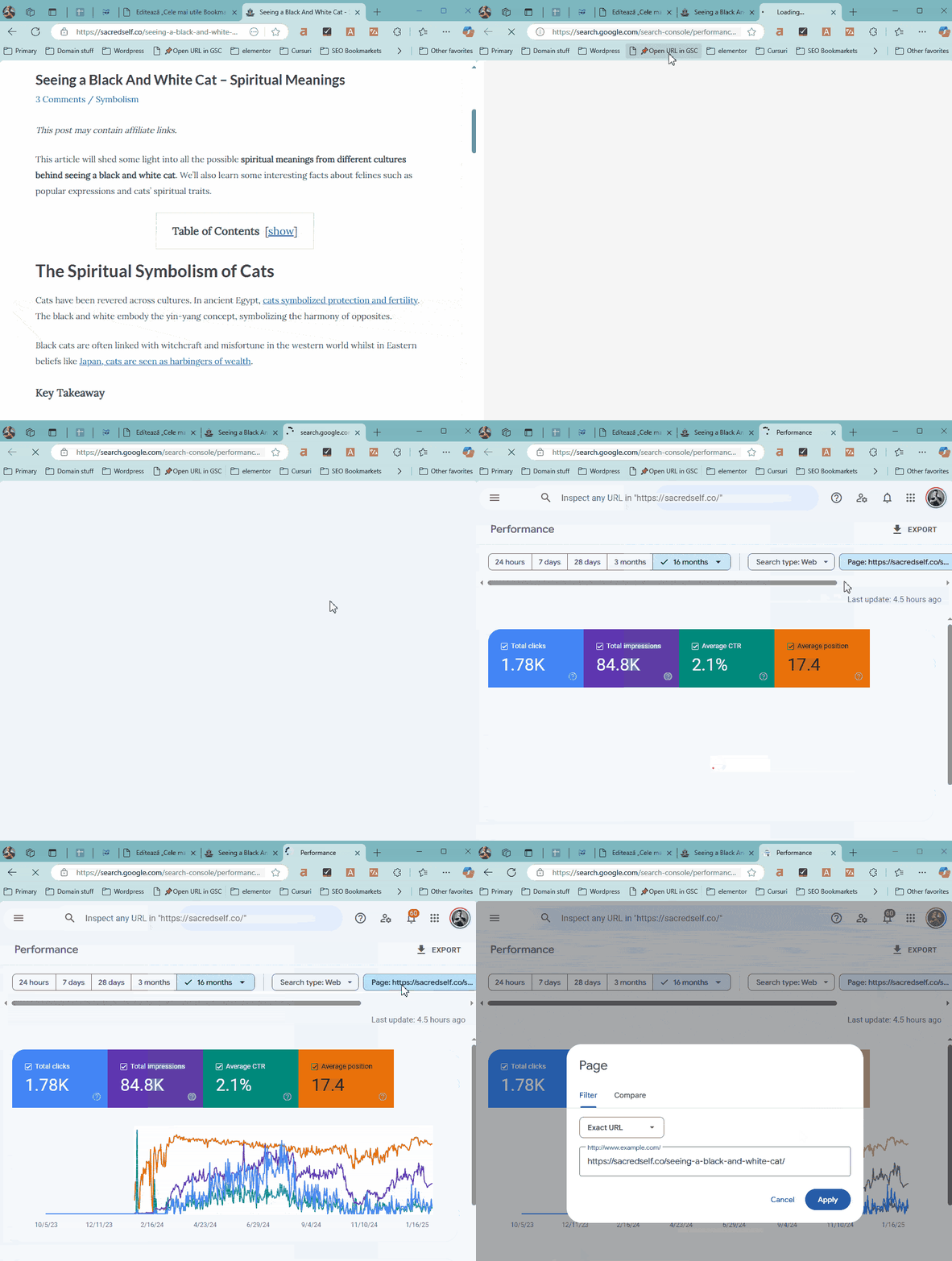
15. Open page directly in Search Console
Back to other simple but practical bookmarklets – with this bookmarklet you open any active page directly in Google Search Console – it also auto-selects the domain without having to manually select the Property from the list of verified domains in your account.
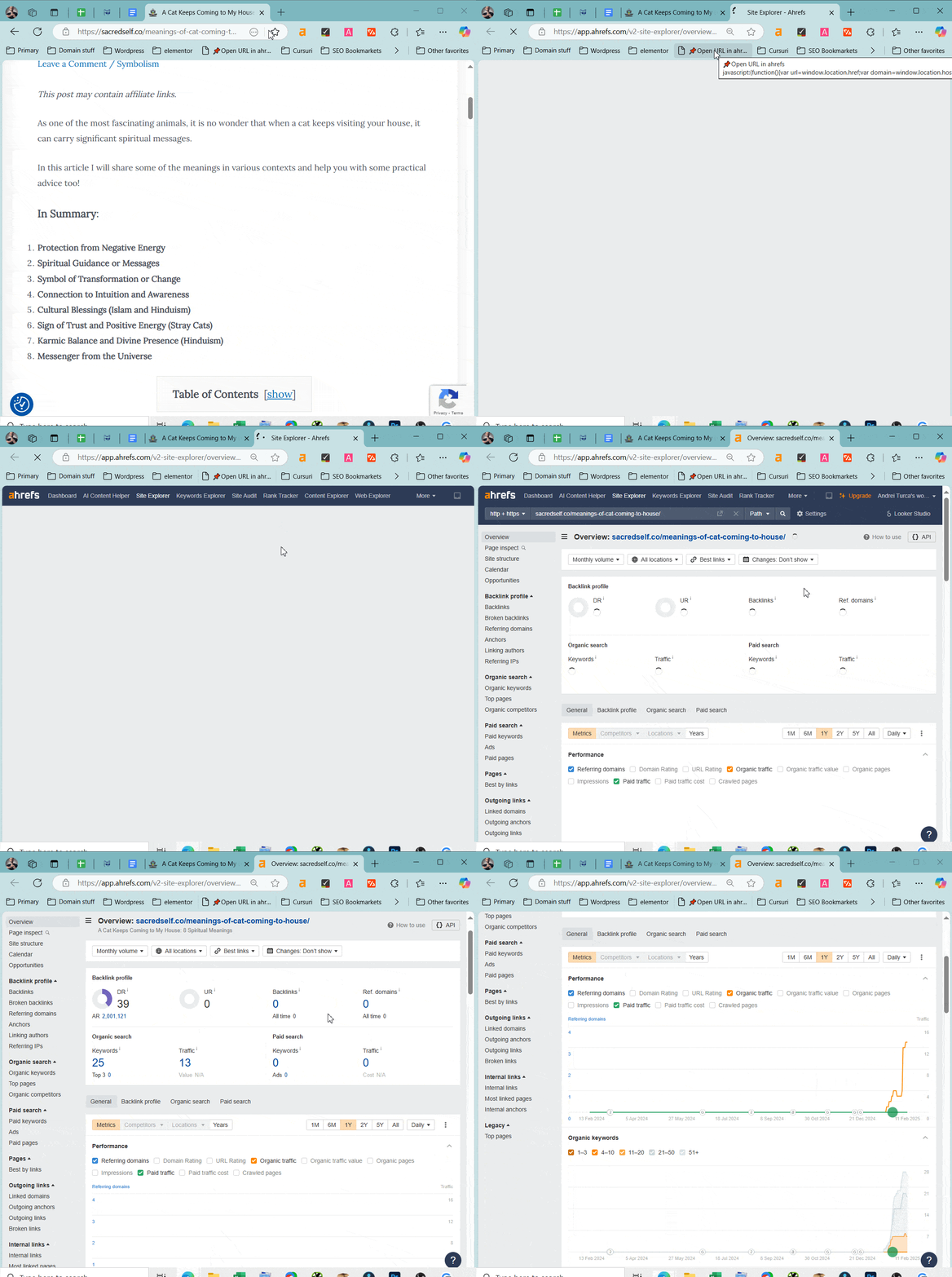
16. Open active page in ahrefs
Similar to the one above, this bookmarklet opens the active page in ahrefs with a single click – it also has a function to automatically detect whether it’s a root domain or a page on the site (URL Path).
17. Open active page in SEMRush
For those who use SEMrush, we now have the exact same function as in ahrefs – with a single click you open the active page in your browser directly in SEMrush.
18. Open active page in Rich Results Tester
Another minimalistic but practical bookmarklet – open the page directly in Google’s Schema tester.
19. Open page in Page Speed Insights
If you’re obsessed with getting the fastest possible site speed, then this is the bookmarklet for you – it opens the page directly in Google’s tool – Page Speed Insights.
20. Open active page in archive.org
Among the SEO analysis tools is the site archive.org (Wayback Machine), where you can view the history of any site or page – useful for seeing changes on a page and how those changes influenced rankings.
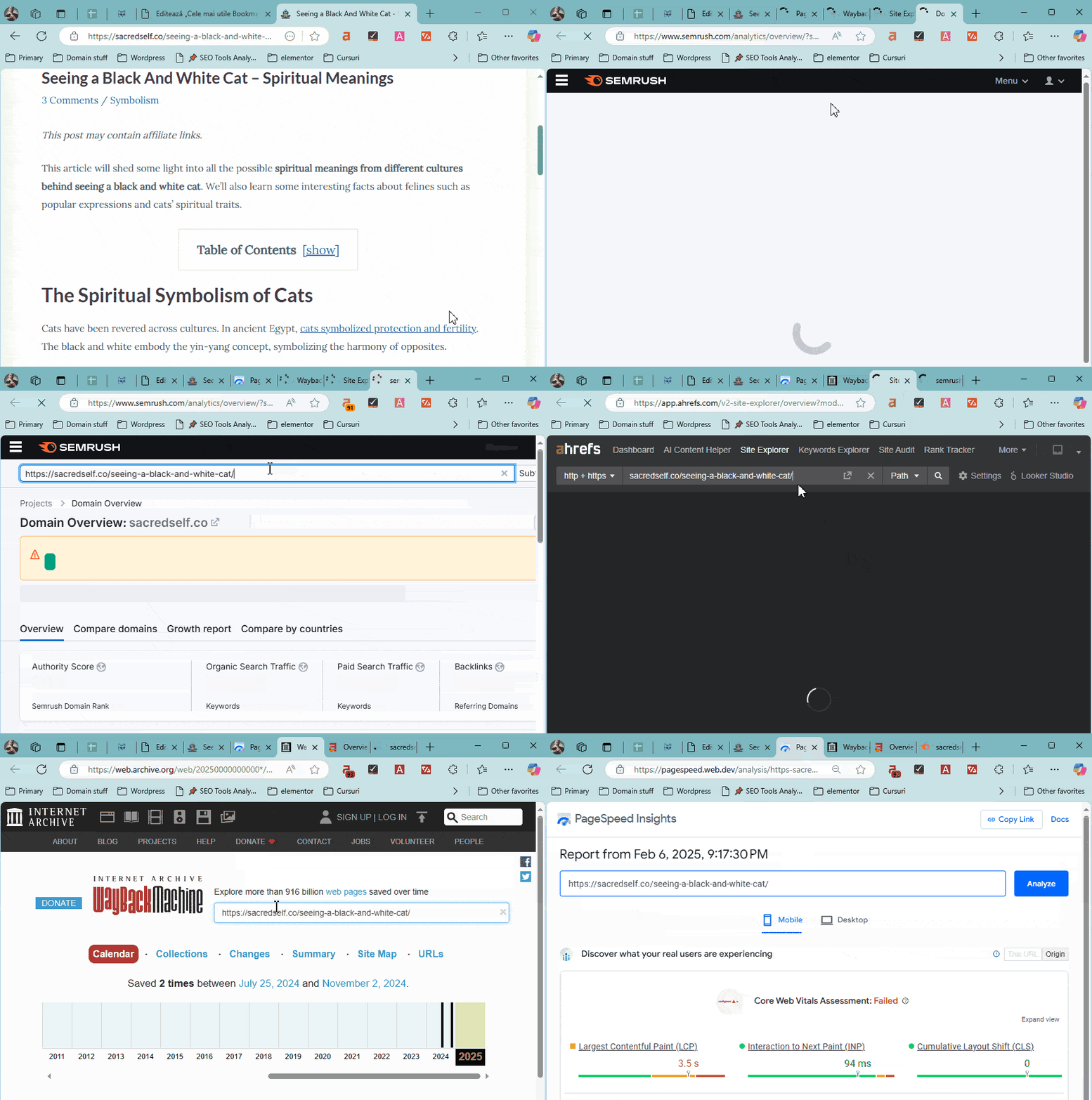
21. Open page in multiple SEO tools
If you use all of the SEO tools above, I’ve created a bookmarklet to open them all at once – with a single click you’ll analyze the active page in 4 different SEO tools – ahrefs, SEMRush, archive.org, and PageSpeed Insights.
- SEO Tool: Create your own bookmarklet with your preferred SEO tools for SEO analysis using this generator I built especially for this post: SEO Analysis Bookmarklet Generator.
22. Open page directly in moz.com
If you’re a Moz user, you can also use this bookmarklet to open the site or page directly in Moz.com.
As a side note, the Moz.com SEO tool has a more advanced and precise backlink filtering algorithm than ahrefs – Moz separates quality backlinks from spammy or low-value ones, whereas ahrefs lumps all backlinks together in a rather rudimentary way.
23. Open site in similarweb.com
Another tool for site analysis is similarweb.com – use this bookmarklet to open the active site directly in SimilarWeb.
24. Quick keyword research
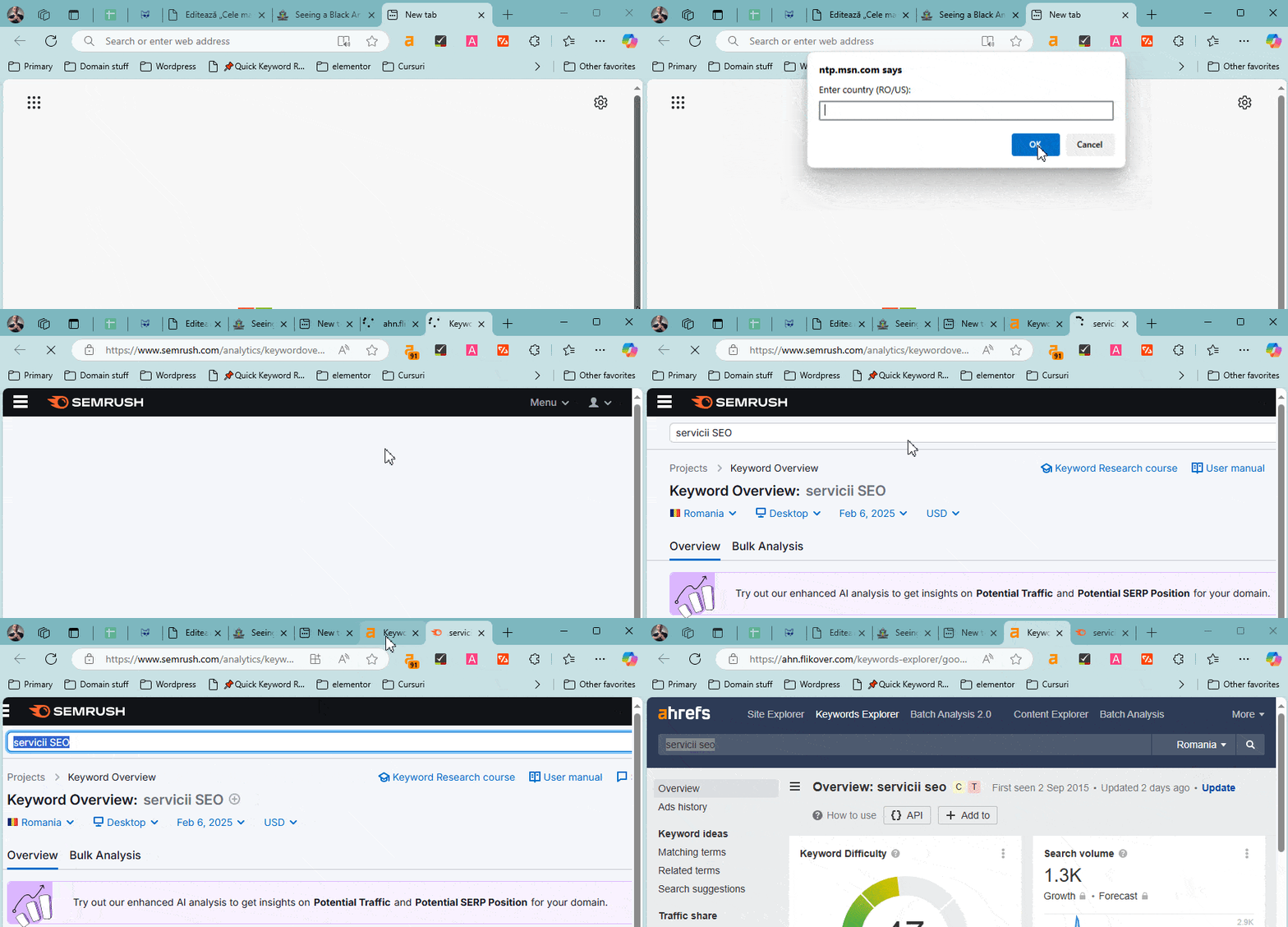
Cclick the bookmark, enter the keyword and country code, and this bookmarklet opens your keyword directly in multiple SEO tools in one click.
Using the bookmarklet code attached below you’ll be able to quickly analyze any keyword in ahrefs and SEMrush.
But if you want to modify the bookmarklet with your own SEO tools I’ve built a special tool for that – SEO Tools Bookmarklet Generator (Quick Keyword Research).
- SEO Tool: Generate your own bookmarklet with your preferred SEO tools using this tool I developed especially for this post: Bookmarklet Generator for Multi Keyword Research.
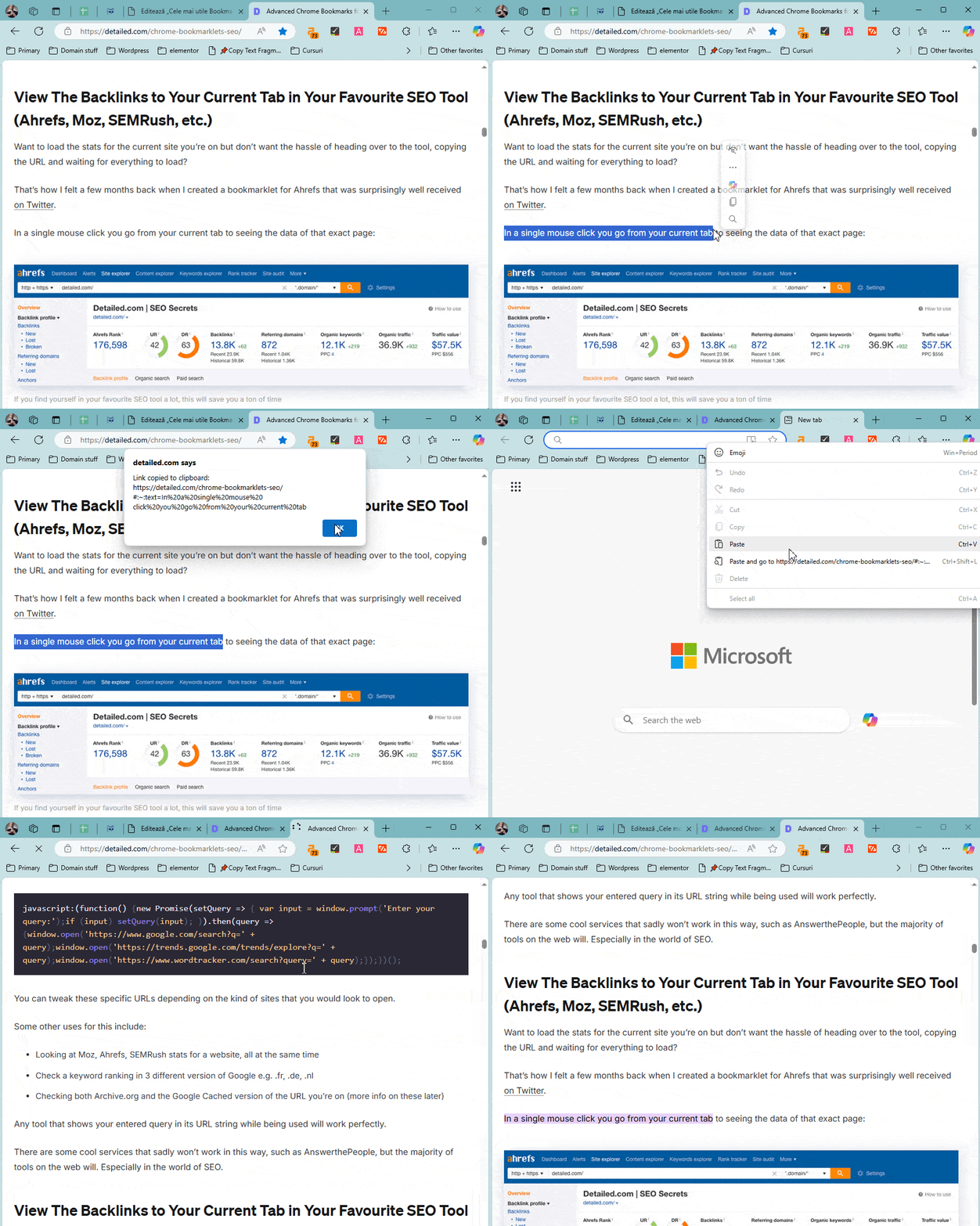
25. Copy a fragment URL pointing to any text
A bookmarklet unlike all the others listed – you can quickly create a text fragment link (also known as jump links) that refers to specific text on a page.
I use this when doing internal or external linking to reference something specific on a page. If you click this link for example, you’ll be taken directly to the referenced text.
All you need to do is highlight any text on the page, click the bookmark, and it will generate a fragment link for that specific text on the page.
Conclusion
I hope you found something useful here for your own SEO process. Personally, I use the technical SEO ones and those relevant to indexing issues the most. But all of them have a small benefit in the right context.
I had some headaches developing those customizable bookmarklet generators, but I’m satisfied with the result and I hope they can be useful for your specific use case.
If you want to learn more about SEO, visit the posts on the site – such as those with technical SEO audits, or visit my YouTube channel.
Which of these bookmarklets do you find the most useful? Do you have an idea for a new bookmarklet that would fit on this list? Use the comments section below for any suggestions or questions.
To add new ones: Sitemap link extraction + counting. The one where I see a tree view based on a list of URLs — meaning it works better after exporting the sitemap links in a new tab.

My name is Andrei and in 2014 I made money online for the first time through websites and SEO. I currently offer SEO services for Romanian and English-language websites. You can also find me on my YouTube channel with SEO tutorials. For SEO education, I invite you to visit my SEO blog or the page with SEO case studies.